
SIRIOS - TP-Link not detected
This document refers to this diagram and provides visual and written guidance of what to do when SIRIOS does not recognize the Wi-Fi adapter even when connected as seen in the below image.

The first thing to evaluate is Hardware, then Windows configurations.
This guidance is meant to be followed step by step, meaning each point is a possible solution for such issue.
Hardware - Physical damage
- If there is a physical damage and Wi-Fi adapter is not detected, escalate this ticket to L2 for possible RMA.
-
Check if the Wi-Fi adapter lights up as seen in the below image
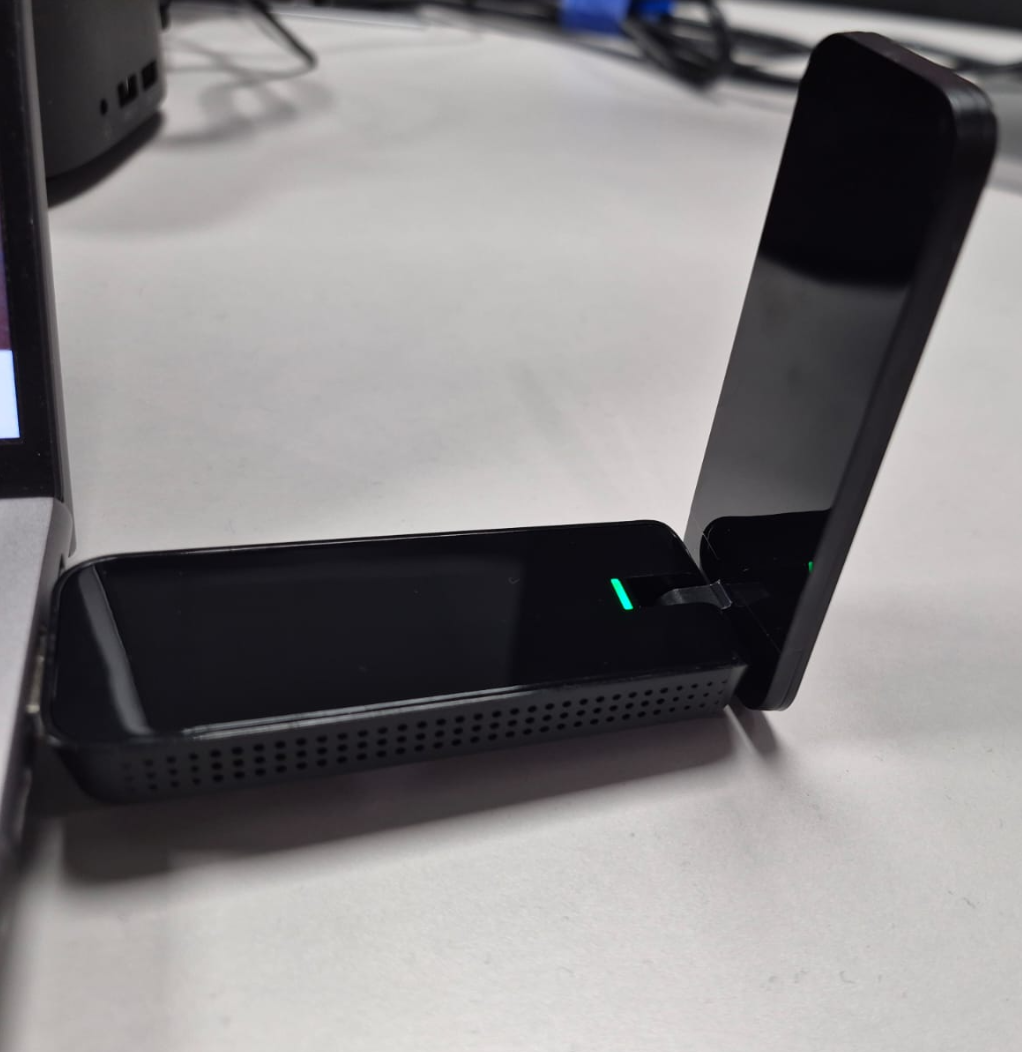
-
Check if antenna is fully deployed
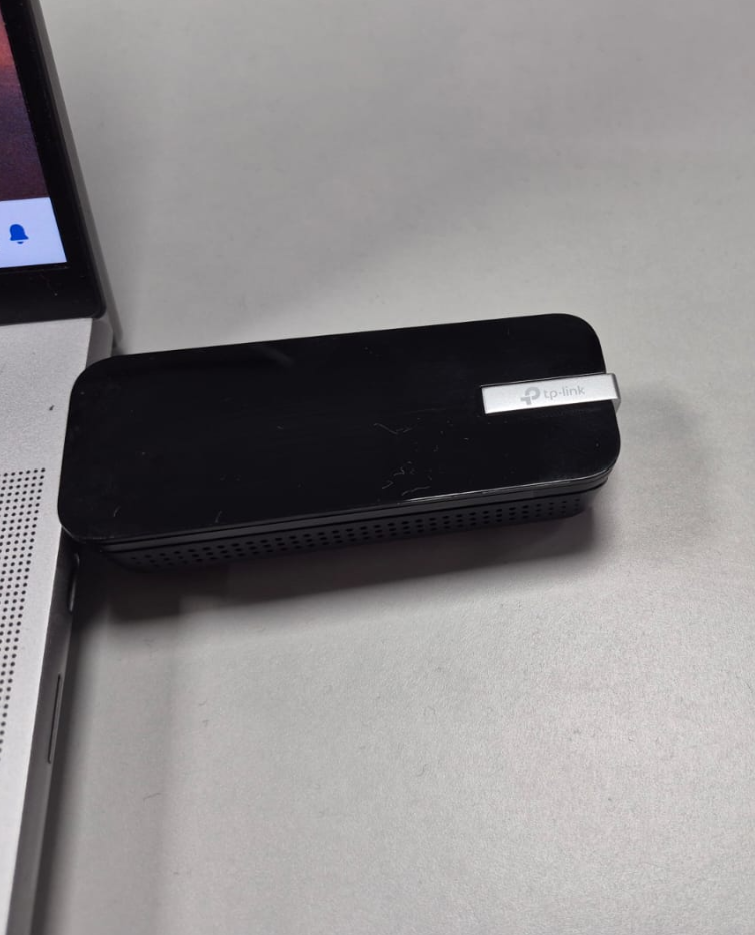
Incorrect
Correct - Check if Wi-Fi adapter is detected in device manager, if not, escalate this ticket to L2.
Windows configurations
- Check if Wi-Fi adapter is a valid model by following next steps:
-
Go to device manager>>> Network adapters >>> right click on TP-Link >>> Properties >>> Details >>> Hardware Ids
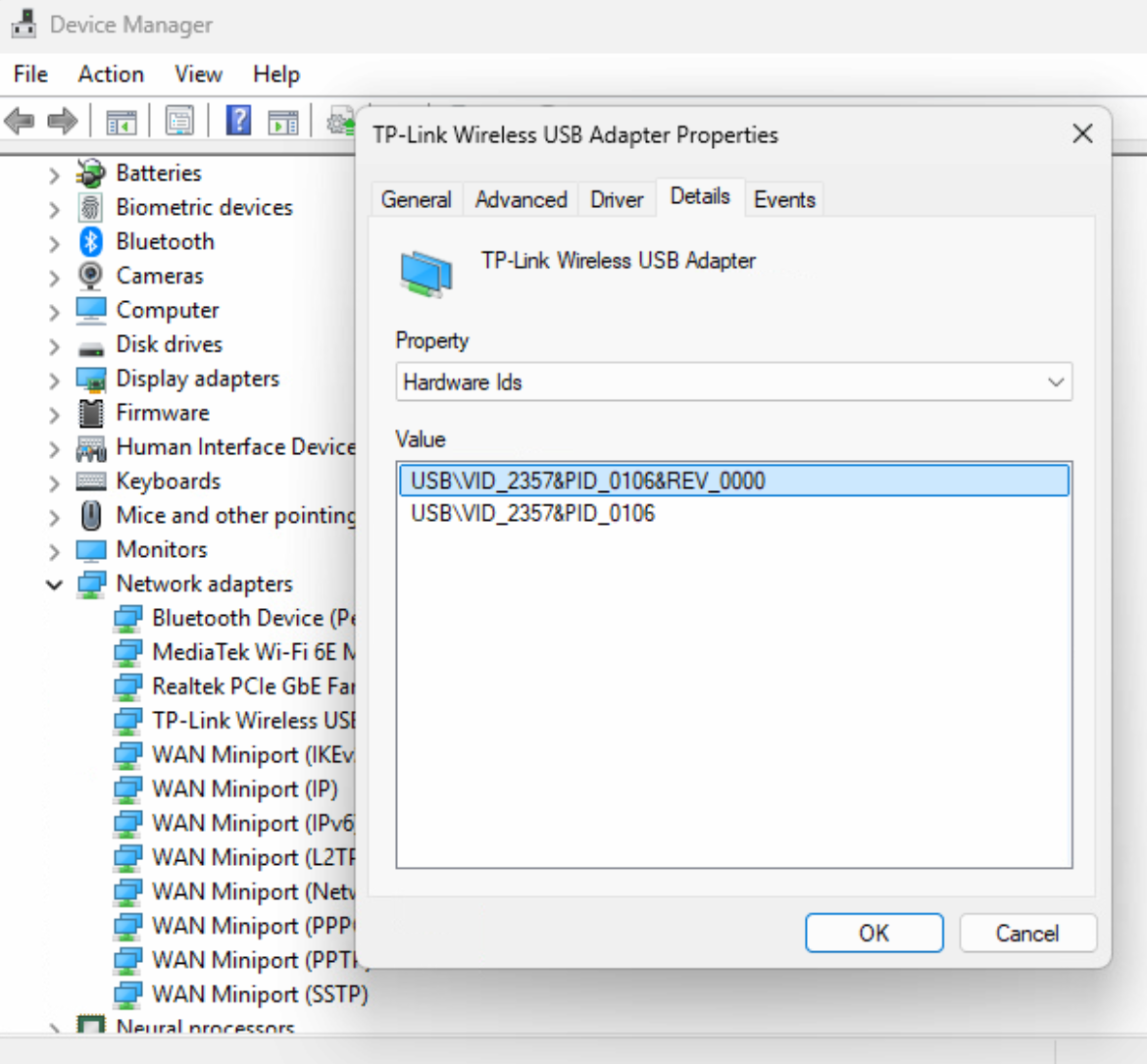
-
Compare PID/VID with below list
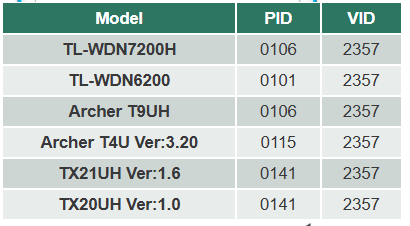
- If PID/VID from customer's Wi-Fi adapter is not listed, then it might be compatible
-
- Check If other networks are listed on Wi-Fi settings, if not, escalate this ticket to L2.
- Check if drivers are updated, if not, update through HP updater and attached drivers
- Link with drivers to be added
- Reinstall below files and reboot laptop
- If at this point SIRIOS does not recognize the WI-FI adapter, escalate this ticket to L2.
